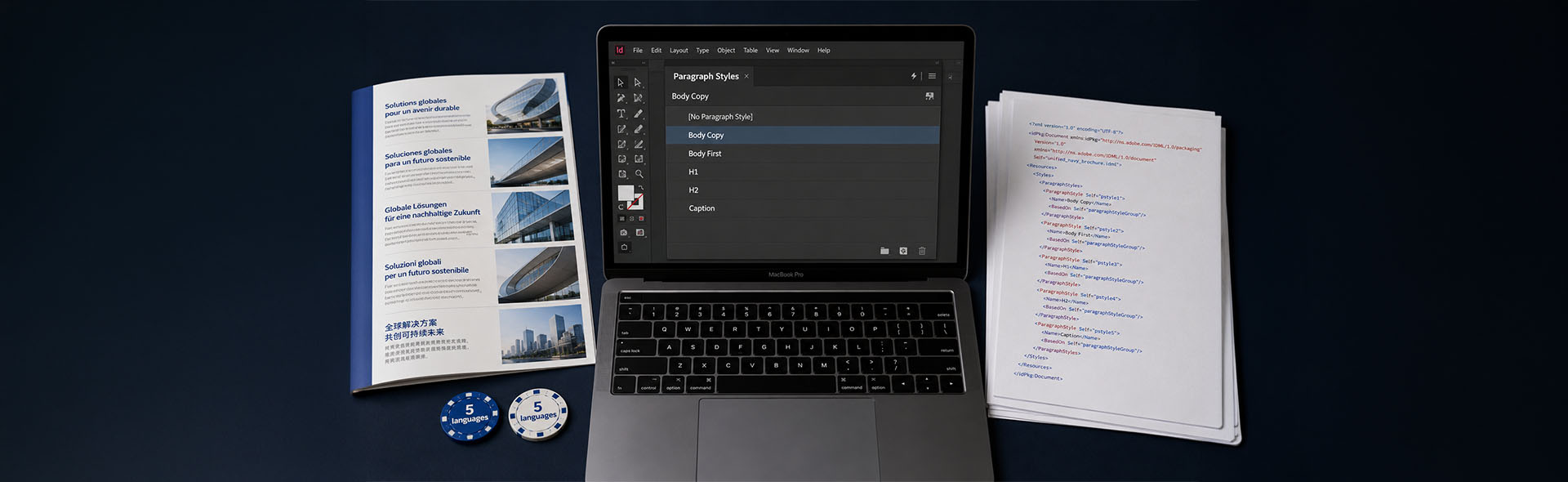
InDesign Paragraph and Character Styles for Translation
If you've ever received a translated InDesign file back from a linguist and found the formatting scattered (body text in a different weight, headings without their spacing, pull quotes back to default), the cause is usually the same: a document that never used styles properly.
Of all InDesign formatting features, paragraph and character styles decide most about how cleanly a file comes through translation. When a document uses real styles, the IDML is clean, the translator's CAT tool shows few tags, and the translated file comes back formatted. Without styles, the same job can take hours of manual reformatting, and that is billable time passed back to the client.
This article explains what paragraph and character styles actually do inside an IDML file, where things go wrong in unstyled documents, and how to build a style architecture that makes multilingual DTP fast and predictable.
InDesign users preparing files for translation, translation agencies that review incoming files, and DTP studios handling multilingual layout. If you work with IDML, this is foundational knowledge.
What happens when styles are not used
InDesign lets you format an entire document with nothing but local overrides: selecting text and making it bold, changing the font size inline, adjusting leading by hand. The document looks identical on screen. The problems only appear when you try to translate it.
When an IDML file is opened in a CAT tool (Trados Studio, memoQ, Phrase and others), the tool reads the underlying XML. Every point where the formatting changes inside a paragraph becomes a tag around part of the text. In a document formatted with local overrides, that looks like this to the translator:
What a translator sees in a non-styled document
- Each change of local formatting (a bold word, a tracking tweak, a kerning pair, a colour) starts a new text range in the IDML
- The CAT tool shows the boundary of each range as a tag
- Invisible overrides, such as a tracking change on one word, produce tags too
- The translator has to place every tag in the translated sentence, where word order is often different
- Result: segments broken up by tags that carry no meaning for the reader
This creates two problems. First, every tag the translator has to carry through is a chance to drop or misplace formatting. Second, the formatting lives in the text rather than in styles, so any later change, such as a smaller body size to fit German, has to be made by hand in every language instead of once in a style.
- Formatting stored as overrides in the text
- Segments broken up by many tags
- Misplaced tags carry wrong formatting into the layout
- Fitting changes made by hand in every frame
- Manual reformatting after every language
- Hard to update the design across languages
- Formatting stored as style references
- Segments with few or no tags
- Tag errors are rare and easy to fix
- Fitting changes made once, in the style
- Formatting is correct when the file comes back
- One style update reaches every language
Reformatting a 24-page brochure by hand in five languages after translation takes hours of DTP work. Setting up styles before the job starts takes a fraction of that, once.
Paragraph styles vs character styles: the difference
These two style types work at different levels and serve different purposes. Mixing them up is one of the most common causes of style-related formatting problems in translated files.
Paragraph styles
A paragraph style applies to an entire paragraph, up to the next return character. It controls font, size, leading, alignment, spacing before and after, indents, tab stops, hyphenation, language, and OpenType features. When you apply a paragraph style, all of those properties update at once.
Paragraph styles are the backbone of any translatable document. Every distinct type of text element in the layout (body copy, headline, subhead, caption, footnote, pull quote, table header, table body) should have its own named paragraph style.
Character styles
A character style applies only to a specific range of characters within a paragraph, overriding only the properties you define. A character style for bold emphasis might only specify the font style; everything else inherits from the underlying paragraph style.
Character styles are what allow you to mark up individual words or phrases (bold terms, italics, hyperlinks, product codes in a different typeface) without wrapping them in a full paragraph style. In the CAT tool, a character style becomes one tag pair around the marked words.
Paragraph styles for the container. Character styles for the exception. Never use a character style to format an entire paragraph, and never use local overrides where a character style would do.
What styles look like in the IDML file
IDML is a ZIP archive of XML files. The styles panel in InDesign directly corresponds to entries in the Resources/Styles.xml file inside that archive. When you export to IDML and a translator opens it, this is the structure their CAT tool is reading.
A paragraph styled with a named paragraph style produces a story XML element like this (simplified):
<CharacterStyleRange AppliedCharacterStyle="[No character style]">
<Content>Your translatable text here.</Content>
</CharacterStyleRange>
</ParagraphStyleRange>
PointSize="10" Leading="14" Tracking="0" Kerning="Metrics"
AppliedFont="Helvetica Neue" FontStyle="Regular"
FillColor="C=0 M=0 Y=0 K=100" HorizontalScale="100">
<CharacterStyleRange AppliedCharacterStyle="[No character style]"
PointSize="10" Leading="14">
<Content>Your translatable text here.</Content>
</CharacterStyleRange>
</ParagraphStyleRange>
The named-style version carries one reference. The override version stores the formatting on the text itself. The CAT tool does not show these attributes, but every point where they change inside a paragraph becomes a tag the translator has to place correctly.
How to build a translation-ready style architecture
Setting up styles before a multilingual project takes a short time compared with the reformatting it saves in every language delivered.
1. Plan your style map first
Before opening the Paragraph Styles panel, list every distinct text element in the document. A typical brochure might have: body copy, body copy first paragraph (no indent), headline, subheadline, standfirst, caption, footnote, pull quote, sidebar body, sidebar heading, table header, table body, bullet item, numbered item, and page number. Each gets its own style.
Use consistent, descriptive names that make sense to someone else opening the file, and put related styles in style groups (folders in the Styles panel): a Body group with Body Copy and Body First, a Head group with H1 and H2, a Caption group. This article writes them as Body/Body Copy.
2. Build a parent and child hierarchy
InDesign styles support inheritance via the "Based On" setting. A parent style, say Body/Body Copy, defines the base: font family, size, leading, colour. A child style like Body/Body First inherits everything from the parent and only overrides the first-line indent. When you change the font in the parent, every child updates automatically.
This hierarchy is critical for multilingual work. When you adapt a layout for a new language, for example switching from a Latin font to a CJK font, you change one parent style and the entire document reflows correctly. Without a hierarchy you'd update every style individually.
Creating a parent and child style pair
- Open the Paragraph Styles panel via
Type → Paragraph Styles - Create the base style: a new style with the font, size, leading and language of the body text
- Create the child: click the New Style icon, then in the style options set
Based Onto your parent style - Override only the properties that differ from the parent in this child style
- Test: change the font in the parent and confirm the child updates automatically
3. Set the language attribute per style
Every paragraph style in InDesign includes a Language field under Advanced Character Formats. This controls which hyphenation dictionary and spell-checker InDesign applies. For source document styles, set this to your source language. When creating language-specific versions of a document, duplicate the style set and update the Language field in each style. This is what lets InDesign hyphenate German with the German dictionary while the English version uses the English one.
The Language field is separate from any text direction setting. For RTL languages like Arabic or Hebrew, you also need to set the paragraph direction to Right-to-Left in the Paragraph panel or the style; the Language field does not control text direction. See the guide to RTL setup in InDesign for the full process.
4. Handle emphasis with character styles, not bold buttons
Every time you select text and make it bold with Shift+Cmd+B (Shift+Ctrl+B on Windows) or the font style menu, InDesign applies a local override. In the IDML, the formatting is stored on that text range. Instead, create character styles for every emphasis pattern you use:
- Bold emphasis: font style only, everything else inherited
- Italic emphasis: font style only
- Hyperlink: colour and underline, no other properties
- Code / monospace: font family only
- Small caps: OpenType feature only
- Superscript / footnote reference: position and size
A character style gives each marked phrase one clean tag pair. Scattered overrides tend to split a sentence into several ranges, and every extra tag is one more to misplace.
5. Eliminate local overrides before export
Before exporting to IDML for translation, check the document for stray local overrides. Any paragraph that has overrides applied on top of a style shows a small plus (+) symbol next to the style name in the Paragraph Styles panel when the cursor is in that paragraph.
Finding and clearing local overrides
- Open
Edit → Find/Change(Cmd+F / Ctrl+F) - Leave Find what empty, set
Find Formatto the paragraph style[Basic Paragraph]and search the document: this finds unstyled text - For a paragraph with a (+) in the Paragraph Styles panel: Option-click (Alt-click on Windows) the style name to reapply the style and clear its overrides, or use the Clear Overrides button at the bottom of the panel
- Check before clearing: overrides that should stay, such as a bold term, need a character style first
- For large documents, the
FindChangeByListsample script that ships with InDesign can run saved queries in one pass
Select all text in a frame (Cmd+A), then look at the Paragraph Styles panel. If you see a (+) next to a style name, there are overrides. The goal before IDML export is no (+) symbols across the document, or at least all remaining overrides converted to named character styles.
A standard style architecture for multilingual documents
The table below shows a starting-point style set for a typical multilingual brochure or report. Adapt the names and properties to the brand; keep the structure.
Style health check before sending to translation
Run through this checklist on any InDesign file before exporting the IDML for a translation job. It takes a few minutes and prevents most post-translation formatting problems.
The short version
Paragraph styles define the formatting of every text element in an InDesign document: headline, body, caption, table cell. Character styles handle inline exceptions: bold, italic, hyperlinks. Together they replace local overrides, the main cause of formatting problems in translated InDesign files.
In IDML, a properly styled document stores style references instead of formatting on the text. The translator handles fewer tags, so tag errors are rarer, and fitting changes after translation are made once in the style instead of by hand in every frame.
The investment is a short setup before translation begins. The payoff is clean, predictable layout across every language in the job. If you're regularly sending files to translation without a full style architecture in place, that's where your post-translation DTP hours are going.
Styles work together with how the IDML is structured. See the guides on INDD vs IDML for translation, fixing overset text after translation, and preparing an InDesign file for translation for the full picture.
Further reading
Need a translation-ready InDesign file prepared?
Translation-readiness checks for InDesign files, style architectures built from scratch, and the full multilingual DTP workflow from IDML export to print-ready files in every language. The first look at a file is free.
Send the file for a free look →